Use the version history
Who can use this feature?
🔐 All users can view previous versions of items and collections. Only workspace members with full access can restore previous versions.
⭐️ Available on the paid plans. On the Starter plan, the version history covers the last 30 days. The unlimited version history is available on the Business plan.
The version history allows you to compare different versions of your content, tracking who edited it and when (feature available for all edits made from April 23, 2019 onward). You can also restore previous versions of your content. This helps you undo unwanted, accidental, or unauthorized changes.
Nuclino automatically saves versions while you're working based on how long you are working and how many changes you make. A version is also always saved when you start editing again after a pause of more than 60 minutes. That way you don't need to worry about manually capturing previous versions.
To use the version history
Open the item or collection you'd like to use the version history for.
Open the menu in the top right.
Select View history.

The version history is shown at the bottom. While you drag the handle, the content of previous versions will be shown automatically.

To see what changed
Drag the handle of the time slider to select a previous version.
Added content will be highlighted in green. Removed content will be highlighted in red.

To see who made the change and when
Drag the handle of the time slider to select a previous version.
Hover over the highlighted section of content.
A tooltip will appear showing the author of the change and the time of the change.

To restore a previous version
Drag the handle of the time slider to select a previous version.
Once you have found the version you want to restore, click on Restore. We will automatically save the current version in case you change your mind.
Version history on your plan
How far back you can go in the version history depends on your team's plan:
Free: The version history isn't available.
Starter: You can view and restore versions from the last 30 days.
Business (and the legacy Standard and Premium plans): You can view and restore all previous versions.
If an item has versions that aren't available on your plan, you'll see a locked marker. Hover over it to see which plan includes them, for example "Versions older than 30 days are available on the Business plan.", or click on it to upgrade.
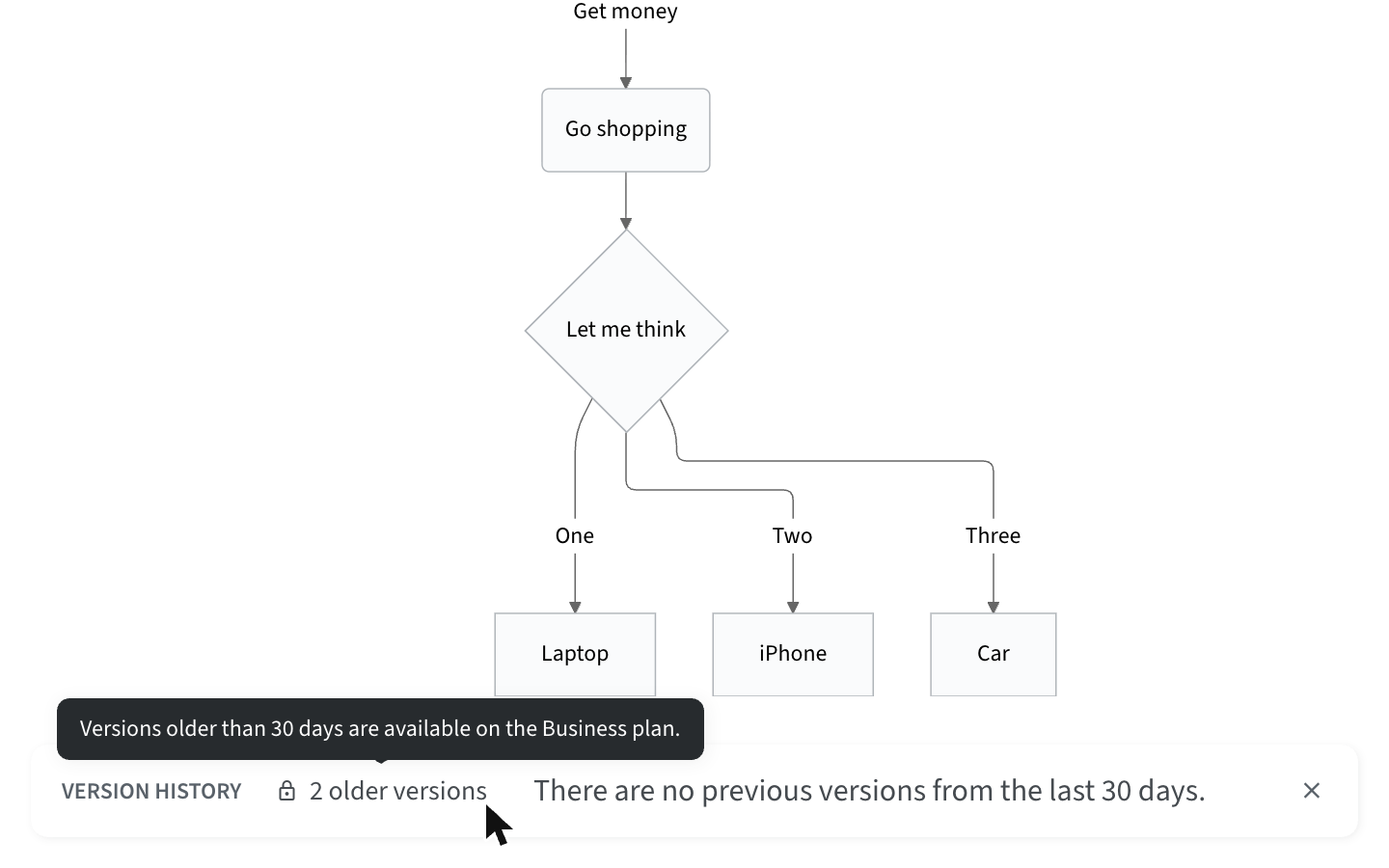
Older versions are hidden, not deleted. They become available again after upgrading your plan.