Use audio files
Who can use this feature?
🔐 Only workspace members with full access can add audio files.
⭐️ Available on all plans.
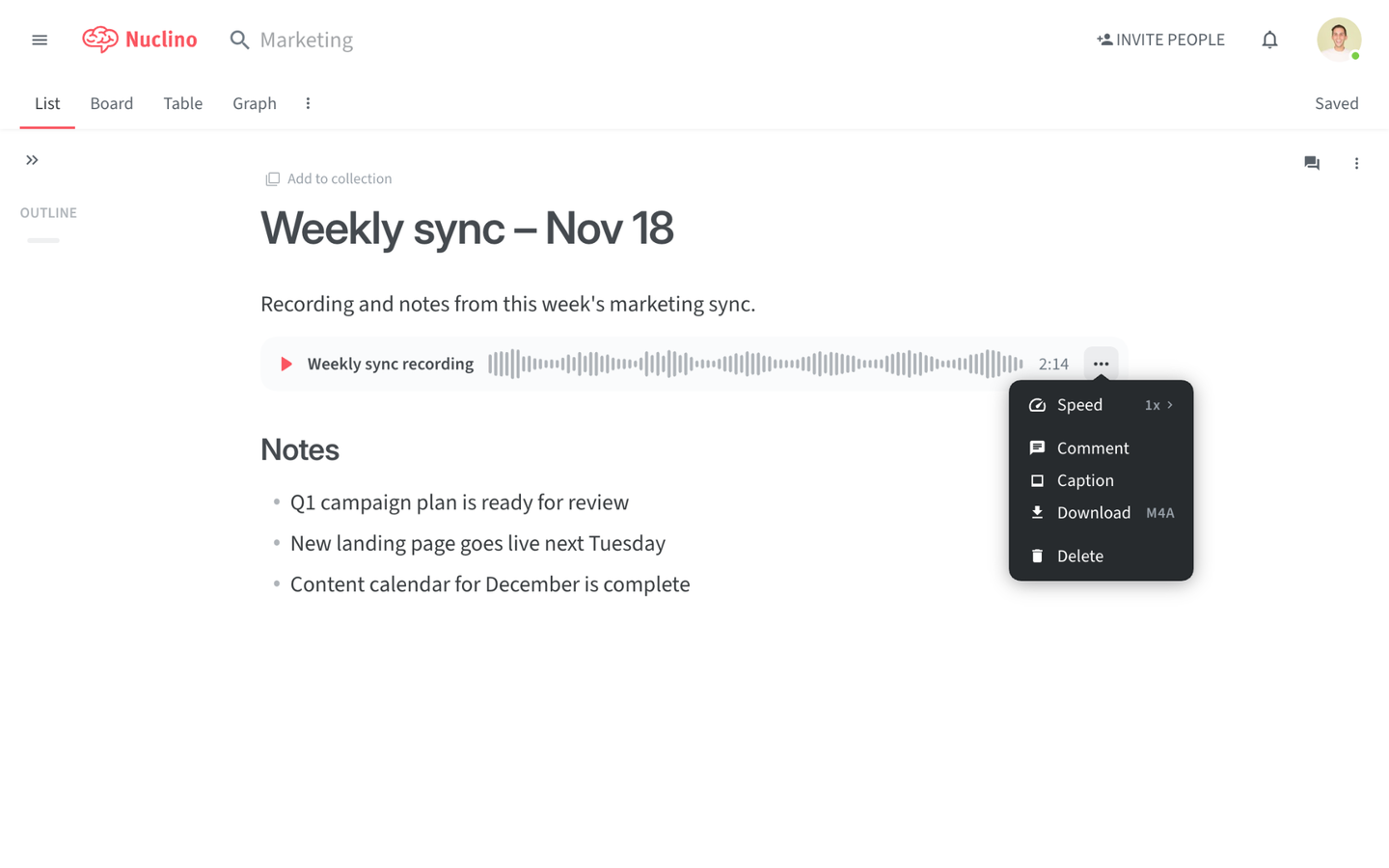
You can add audio files such as voice memos, interview recordings, or podcasts to any item or collection. Audio files in the MP3, M4A/AAC, WAV, and FLAC formats are shown in an audio player with a waveform, so everyone can listen to them right in Nuclino. Audio files in other formats are uploaded as file attachments.
To add an audio file
Using drag and drop
Open the item or collection in which you'd like to add an audio file.
Drag the audio file from your desktop to the section of the item or collection where you'd like to add it. An audio file dropped into an empty paragraph is shown in an audio player. An audio file dropped inline is uploaded as an attachment.
Using the insert menu
Open the item or collection in which you'd like to add an audio file.
Move your cursor in a new empty line.
Click on the insert button, the red
+icon.Select Upload file.
Select the audio file you'd like to upload.
Using the slash command
Type
/at the beginning of an empty line.Select Upload file.
Select the audio file you'd like to upload.
To play an audio file
Click on the play button.
Click anywhere on the waveform to jump to that position.
To change the playback speed
Click on the ⋯ button of the audio player.
Select Speed.
Choose a speed between 0.5x and 2x.
To caption an audio file
Click on the ⋯ button of the audio player.
Select Caption.
Type your caption below the audio player.
To comment on an audio file
Click on the ⋯ button of the audio player.
Select Comment.
Type your comment and click on Comment.
Learn more about commenting on content.
To download an audio file
Click on the ⋯ button of the audio player.
Select Download.
To delete an audio file
Click on the ⋯ button of the audio player.
Select Delete.