Add a cover image (in board view)
Who can use this feature?
🔐 Only workspace members with full access can add cover images to items in the board view.
⭐️ Available on all plans.
In the board view, every item can have an optional cover image. This can make your board easier to scan and help you identify items at a glance.
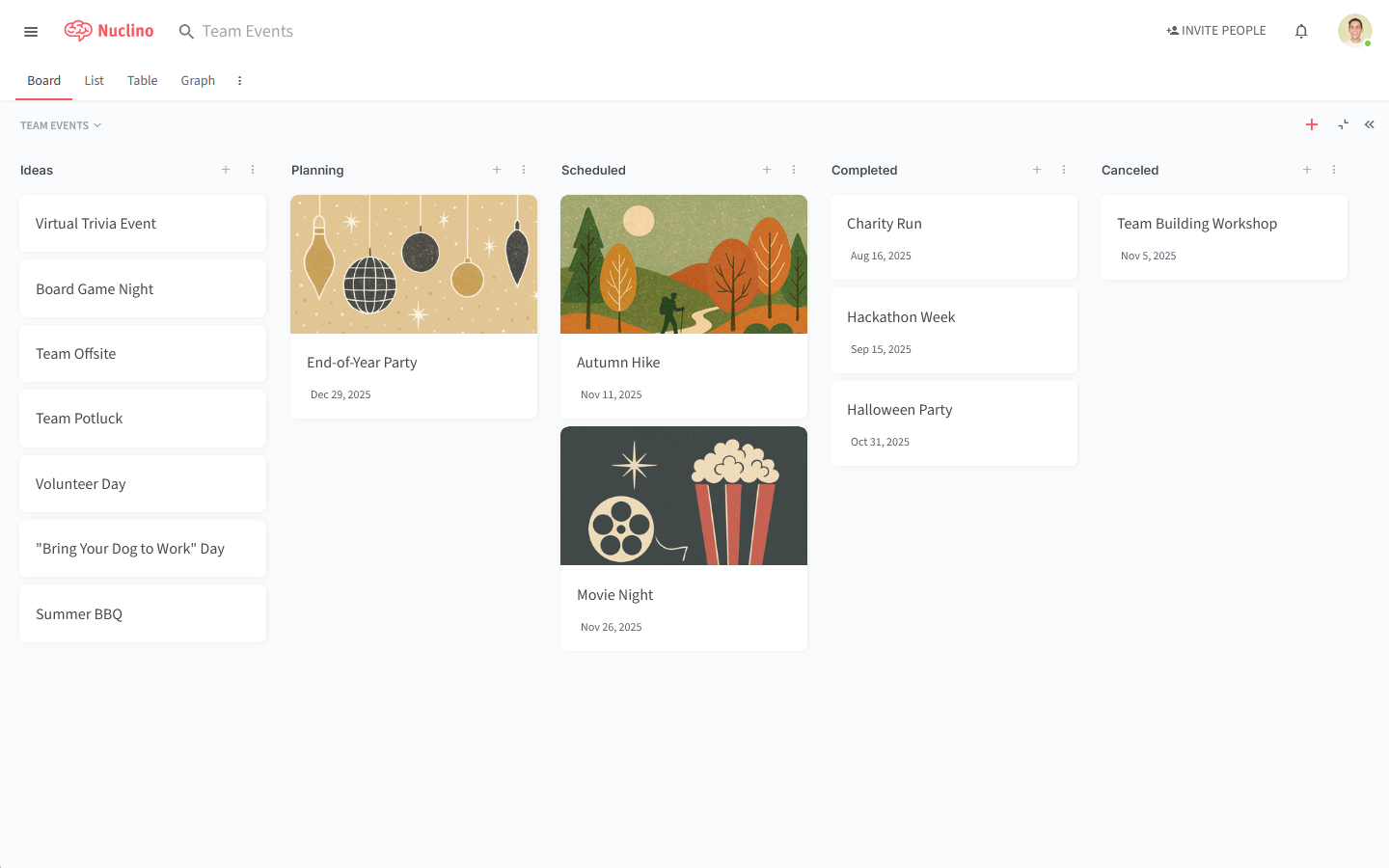
To add a cover image to an item
Open the workspace that contains the item in the board view.
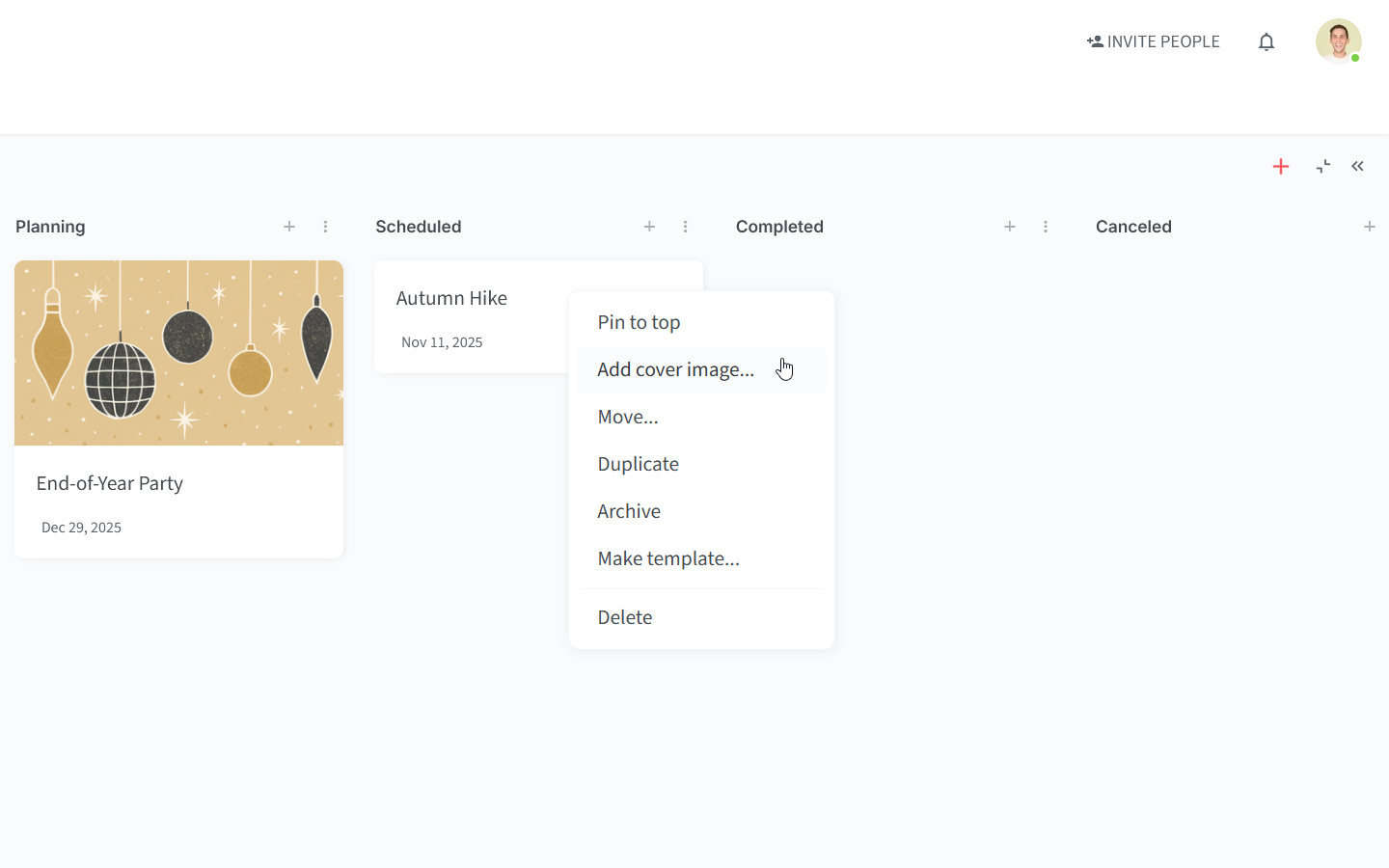
Right-click the item you want to add a cover image to.
Select Add cover image.
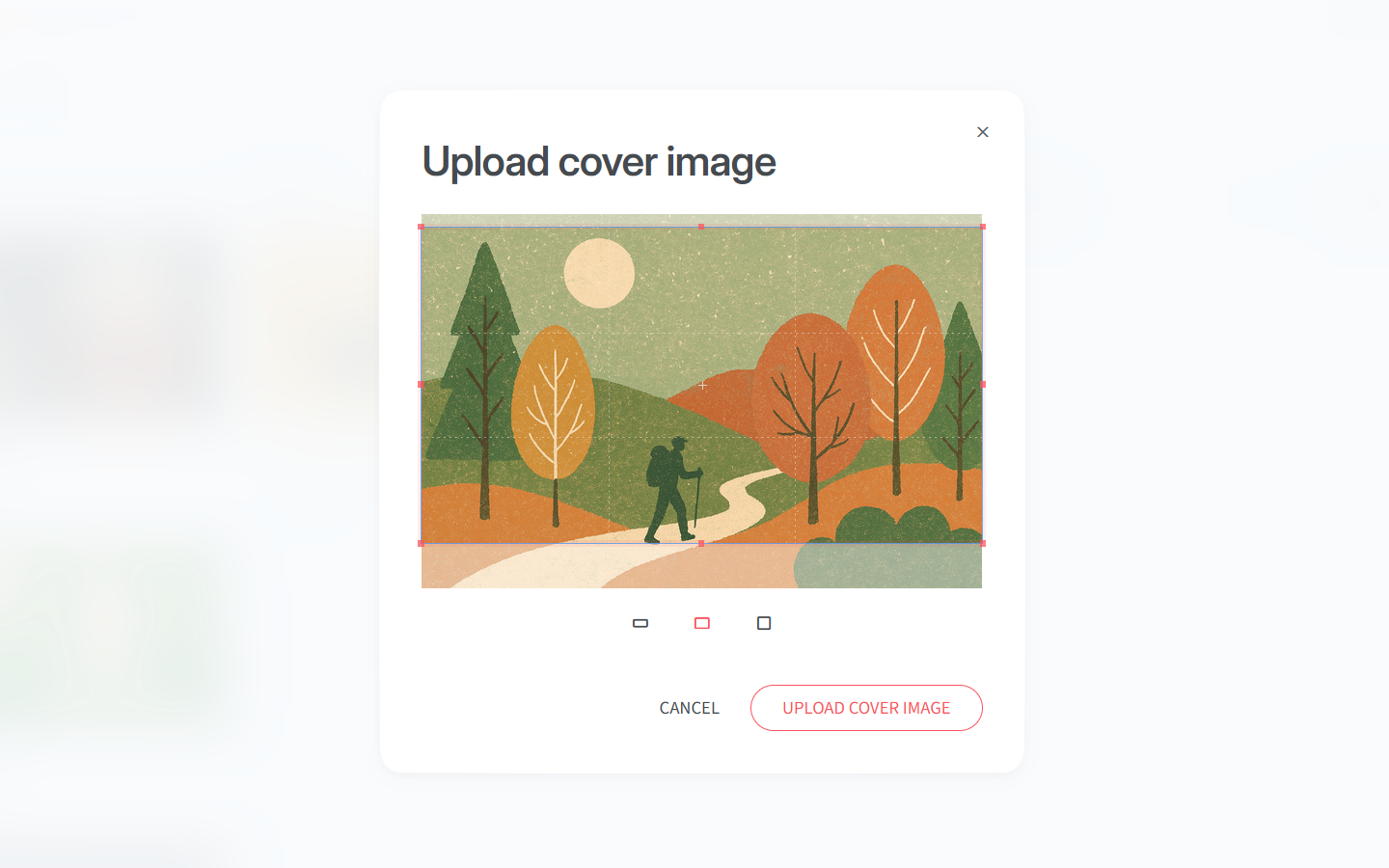
Select the file you'd like to use as a cover image.
Select the aspect ratio.
Click Upload cover image.
To remove a cover image from an item
Right-click the item.
Select Remove cover image.