Filter, sort, and hide columns in the table view
Who can use this feature?
🔐 Available to anyone. Only workspace members with full access can save changes to the view for everyone.
⭐️ Available on all plans.
You can change how the table view shows your items: sort them by any field, hide the columns you don't need, and filter the table so it only shows the items you're interested in, for example, only the high-priority tasks or only the leads that are assigned to you.
You'll find all of these options in the View options menu in the top right corner of the table view. Many of them are also available in the menu of each column.
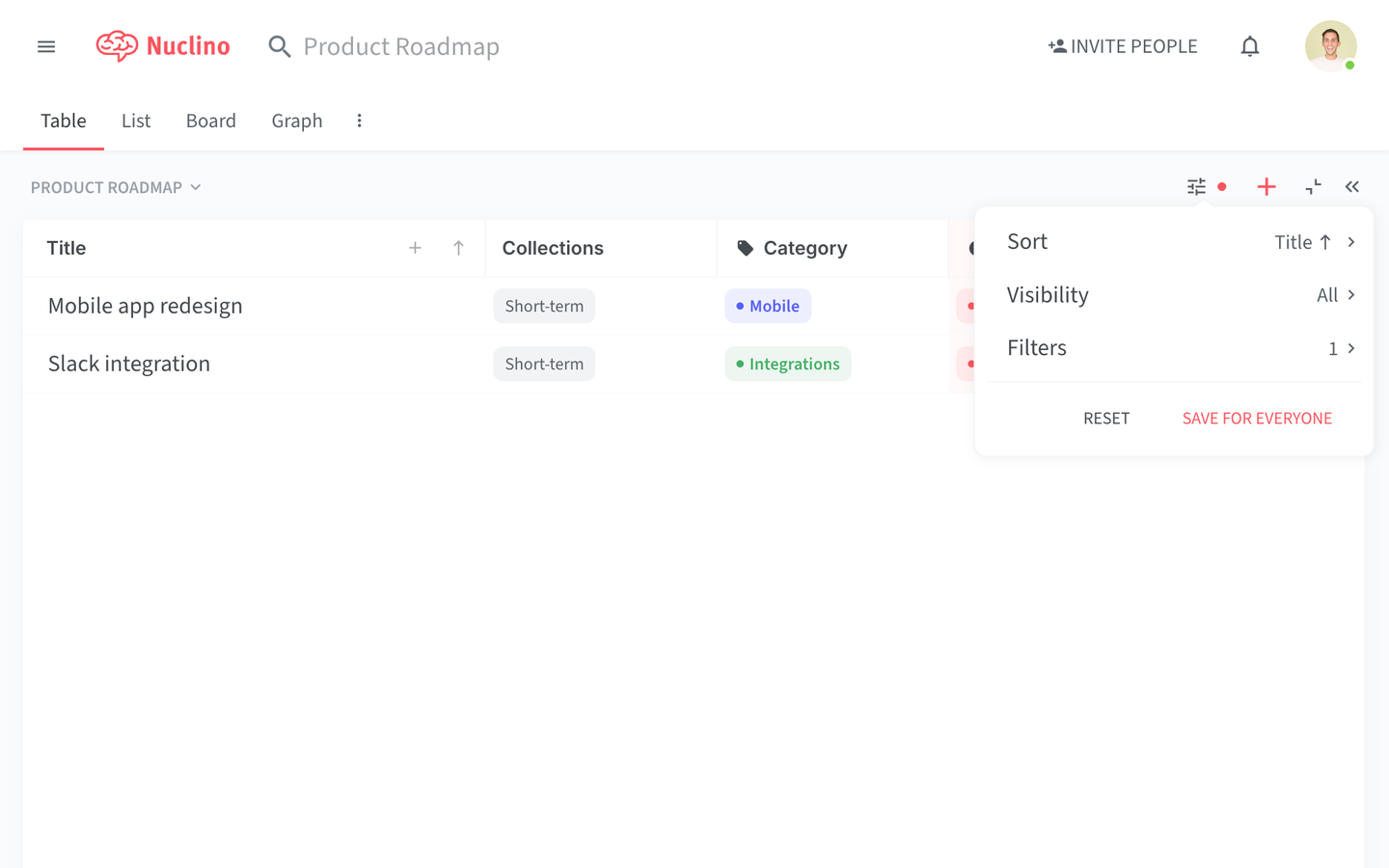
Your changes and Save for everyone
Each workspace has one table view configuration that everyone sees. When you sort, filter, hide, move, or resize columns, your changes only apply to you at first. They're saved in your browser, so you can adjust the table without affecting anyone else, even if you only have read-only access.
Once you've changed the table, the View options menu shows two buttons:
Save for everyone: Makes your changes the table view configuration of all workspace members. Only members with full access see this button.
Reset: Discards your changes and shows the table the way everyone else sees it.
Saving the column order for everyone also changes the order of the fields in the workspace settings, in open items, and on the item cards of the board view.
To sort the table
Open the View options menu and select Sort.
Select Custom, Title, or the field you want to sort by.
Select Ascending or Descending.
Custom shows the items in their custom order, which members with full access can change by dragging rows. Learn more: Select, copy, and paste cells in the table view
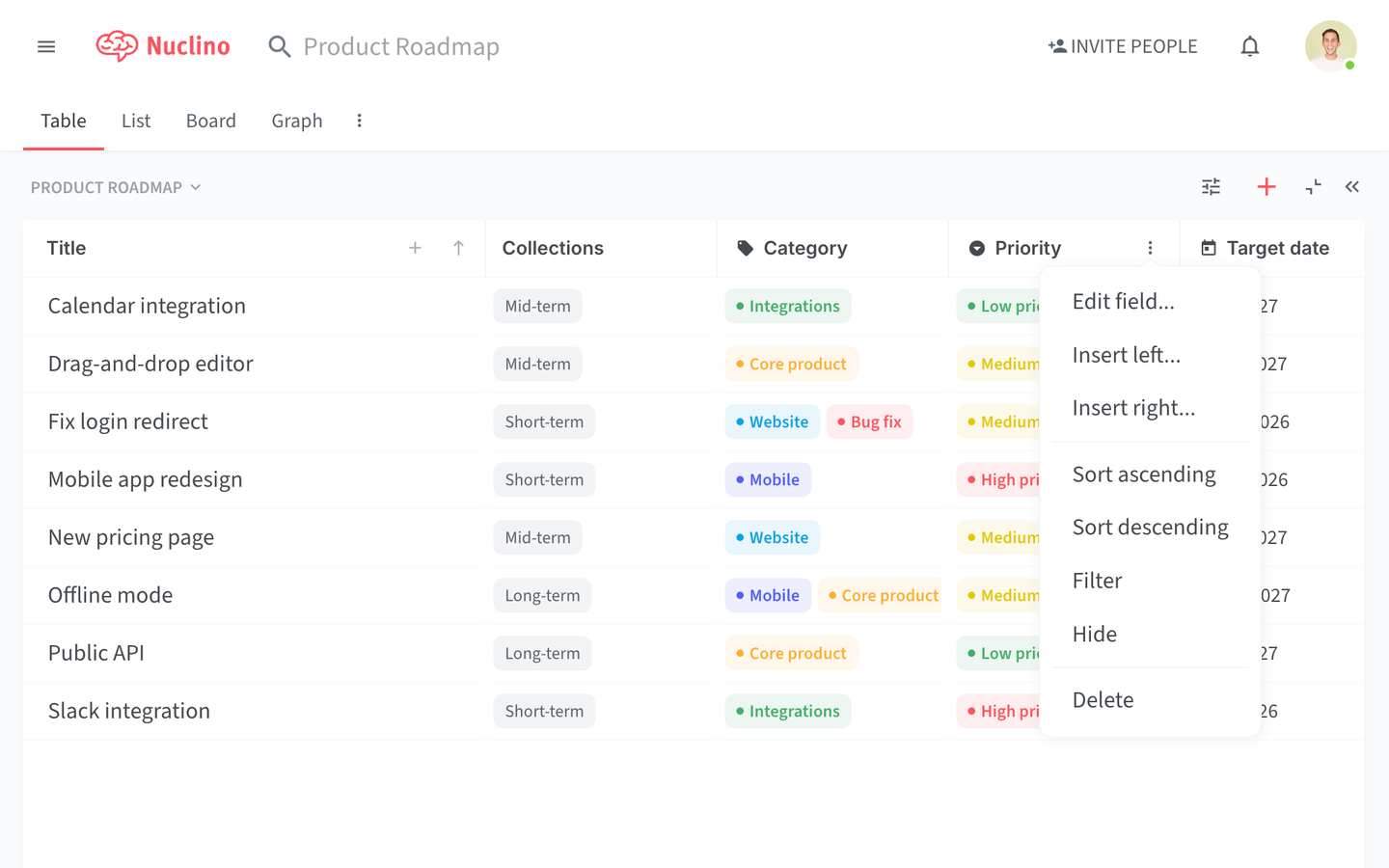
You can also click on the three dots ⋮ in a column header and select Sort ascending or Sort descending. To change the sort direction, click the arrow in the header of the sorted column.
To hide columns
Open the View options menu and select Visibility.
Click the toggle of each field you want to hide or show.
To hide a single column, you can also click on the three dots ⋮ in its header and select Hide. The Title column can't be hidden.
To show all columns again, select Visibility and then Show all. You can still sort and filter the table by hidden columns.
To filter the table
Open the View options menu and select Filters.
Click Add filter.
Select what you want to filter by:
My tasks: Items containing open tasks assigned to you.
Templates: Items that are templates.
Mention or link: Items that mention a team member or group or link to an item, collection, or workspace.
Collections or any other field: Items with certain field values.
For a field, select a condition (for example, is, contains, or is empty) and then the value. For text and number fields, type the value and click Apply.
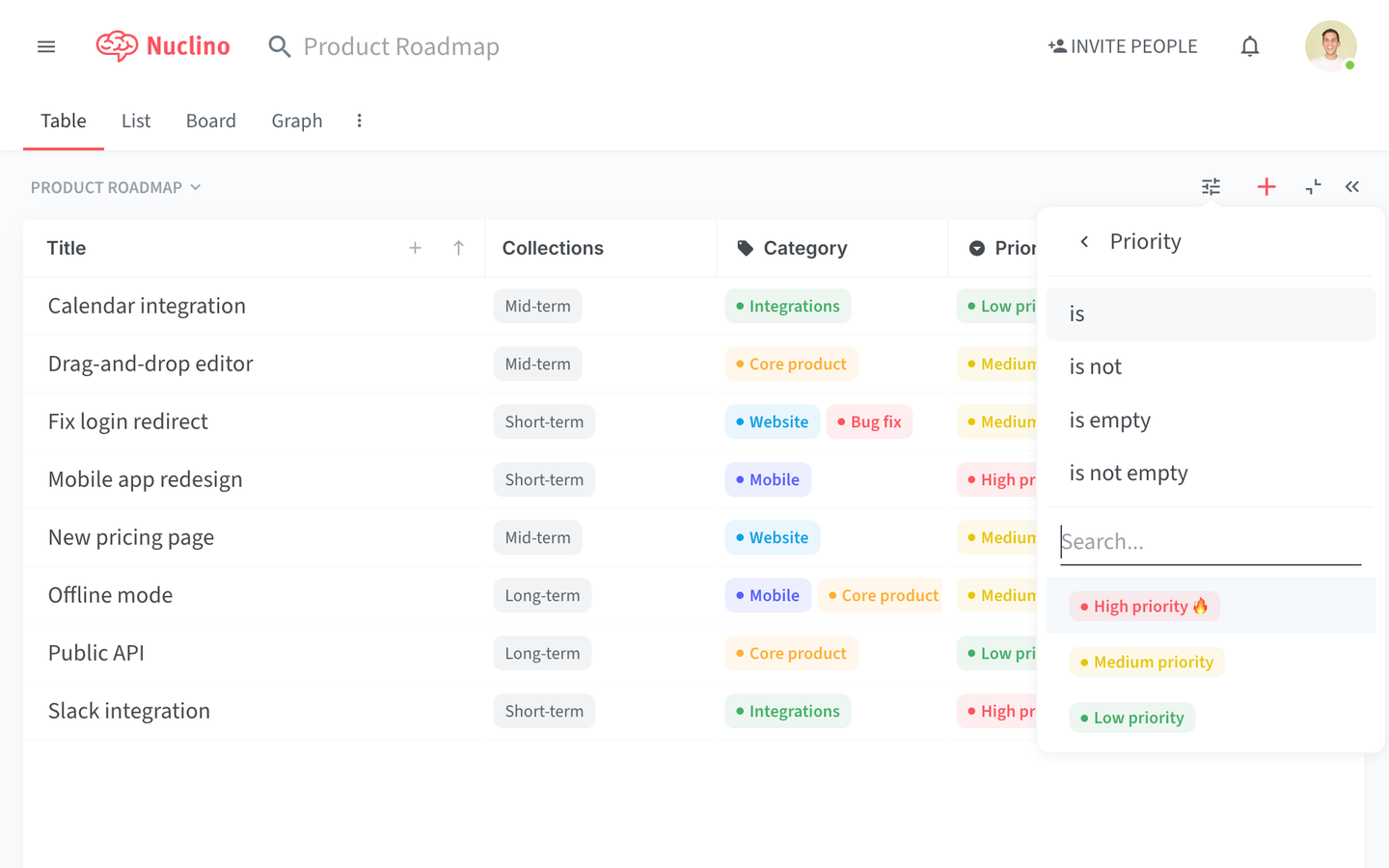
To filter by a single column, you can also click on the three dots ⋮ in its header and select Filter.
When you add several filters, the table only shows the items that match all of them.
Filtered columns show a filter icon in their header. Click it to edit, add, or remove filters for the column.
To edit or remove a filter
Open the View options menu and select Filters.
Click a filter to change it, or click × next to it to remove it.
To remove all filters at once, click Clear all.
If an item you create or change doesn't match the filters, it's hidden from the table, and a notification lets you know. New items still open right away so you can keep working on them.
The filters of the view apply on top of the search filters you add in the search bar. Unlike search filters, they aren't part of the link to the workspace, and they don't apply to search results.
To move and resize columns
Move a column: Drag its header to a new position. The Title and Collections columns always stay first.
Resize a column: Drag the divider at the right edge of its header.
Reset the width of a column: Double-click the divider.
Like your other changes, the column order and widths only apply to you until you click Save for everyone.
Column menu
Click on the three dots ⋮ in a column header (or right-click the header) to open its menu. Depending on the column and your access, it contains:
Edit field... (or Edit collections... for the Collections column)
Insert left... and Insert right... to add a field
Sort ascending and Sort descending
Filter
Hide
Reset width (if you resized the column)
Delete to delete the field
You can find the keyboard shortcuts for the table view in: Use keyboard shortcuts.